Branding
Branding sets how your organization looks everywhere: the menu bar in Picsha DAM, Picsha Admin and Picsha Lab, and the pages people reach without signing in, such as public share links. Choose a logo set, replace any of its images with your own, and set your colors. The previews on the page show the result as you go.
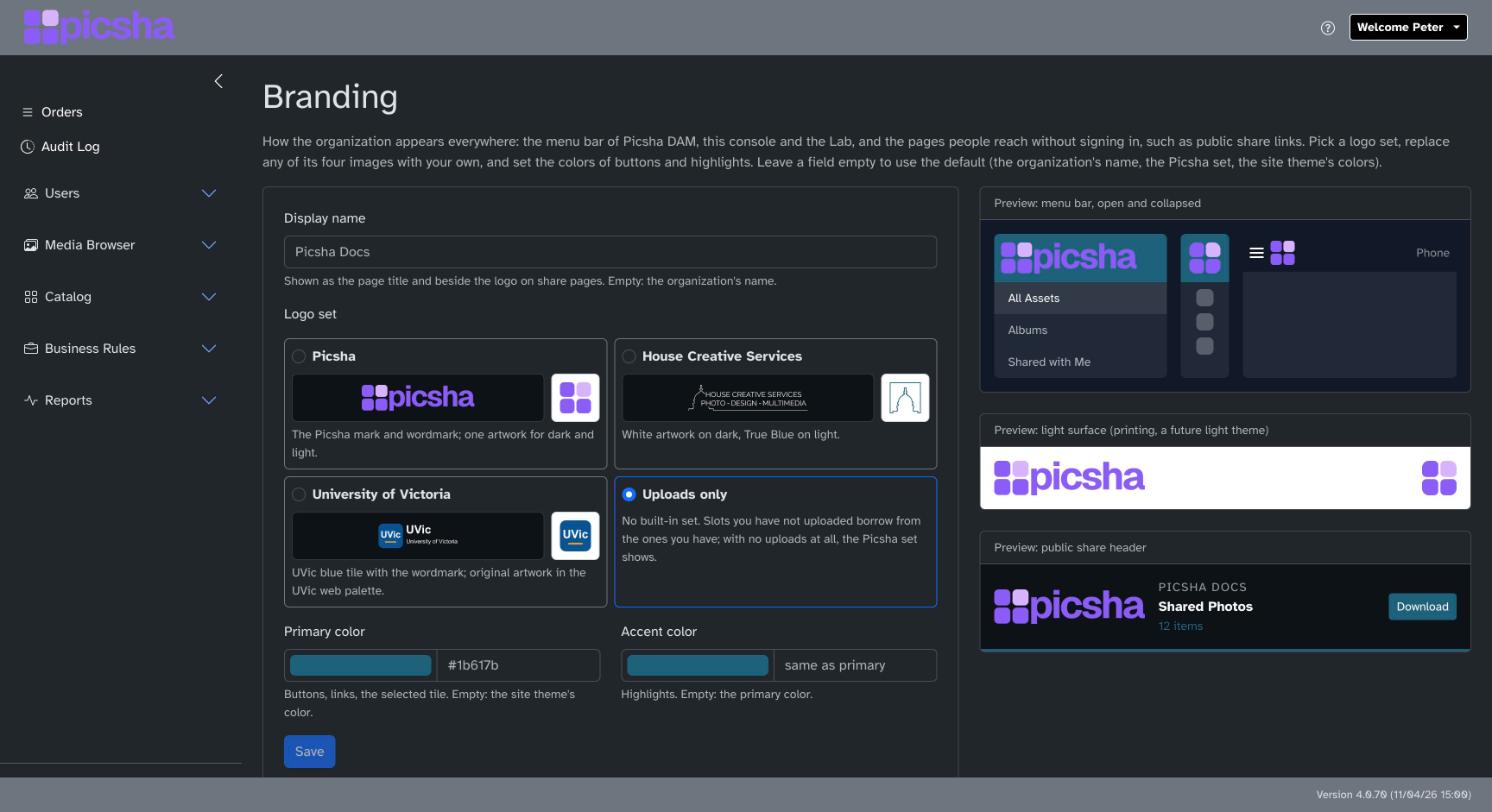
Display name (up to 80 characters) is shown as the page title and beside the logo on share pages. Left empty, your organization's name is used.
Logo set: choose one of the built-in sets, or Uploads only to use just the images you upload. With Uploads only, an image you haven't uploaded borrows from one you have, and with no uploads at all the Picsha logos show.
Primary color is used for buttons, links and the selected tile, and Accent color for highlights. Enter a color as #rgb or #rrggbb, or use the color picker. Left empty, the primary color comes from the site theme and the accent color matches the primary color.
Click Save to make the display name, logo set and colors live.
Under Logo files, four images make up your logos: a square mark, used when the menu is collapsed and on phones, and a wide logo, used when the menu is open and on share pages, each in one version for dark backgrounds and one for light backgrounds. Click Upload… on any of them to replace just that image, or Remove to go back to the logo set's image. Uploads and removals take effect immediately. Use PNG, JPEG, WebP or SVG files of 2 MB or less, ideally with a transparent background.