Taxonomy
The taxonomy is the navigation tree in the Picsha DAM library sidebar. A new organization starts with the built-in tree: All, Recent (with Created and Added in the last 7, 14, 30 and 90 days), Last 10 Sessions, People, Places and My Albums. Each item is one of these types:
- Query (structured search): shows the assets that match a search you build with the query builder, for example by search text, tags, face, place, object, text in the image, album, file type, date created or date added.
- URL (saved route): opens a saved location in Picsha DAM.
- Tags: shows assets carrying one or more hashtags (see below).
- Placeholder (group only): groups other items under it and runs no search.
The menu tree
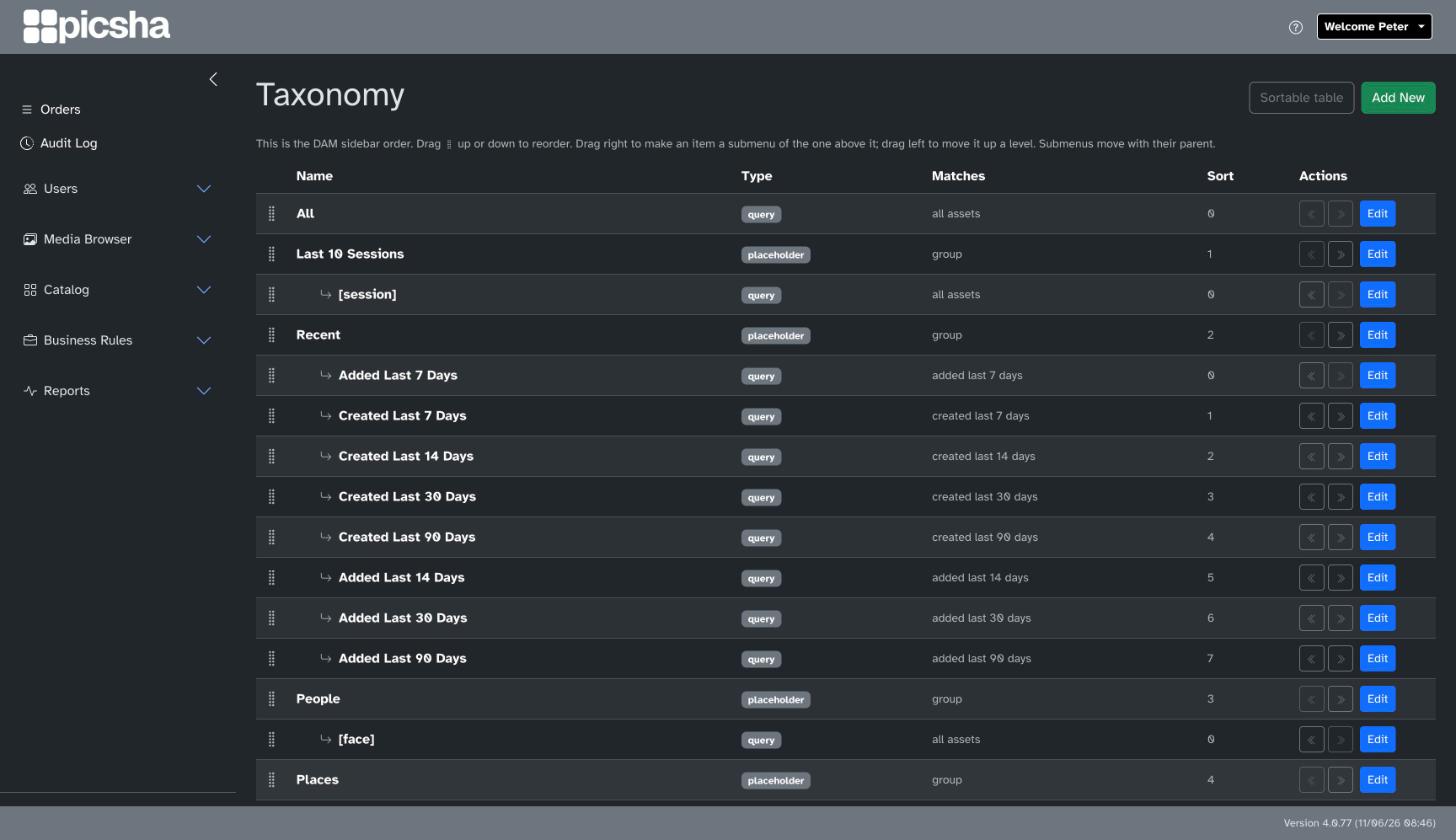
The Taxonomy page shows the items as a tree, in the order the Picsha DAM sidebar shows them. Hidden items are marked Hidden, and the Matches column summarizes each item's query in plain language.
- Drag an item up or down to change its order among its neighbours.
- Drag an item to the right to make it a submenu of the item above it; drag it to the left to move it up a level. The same two moves are offered as buttons on each row.
- The tree saves as soon as you drop an item. Sort numbers are set for you and never repeat, so there is nothing to renumber by hand.
Sortable table switches to a flat, read-only list you can sort by column; switch back to Menu order to drag again.
Adding and editing an item
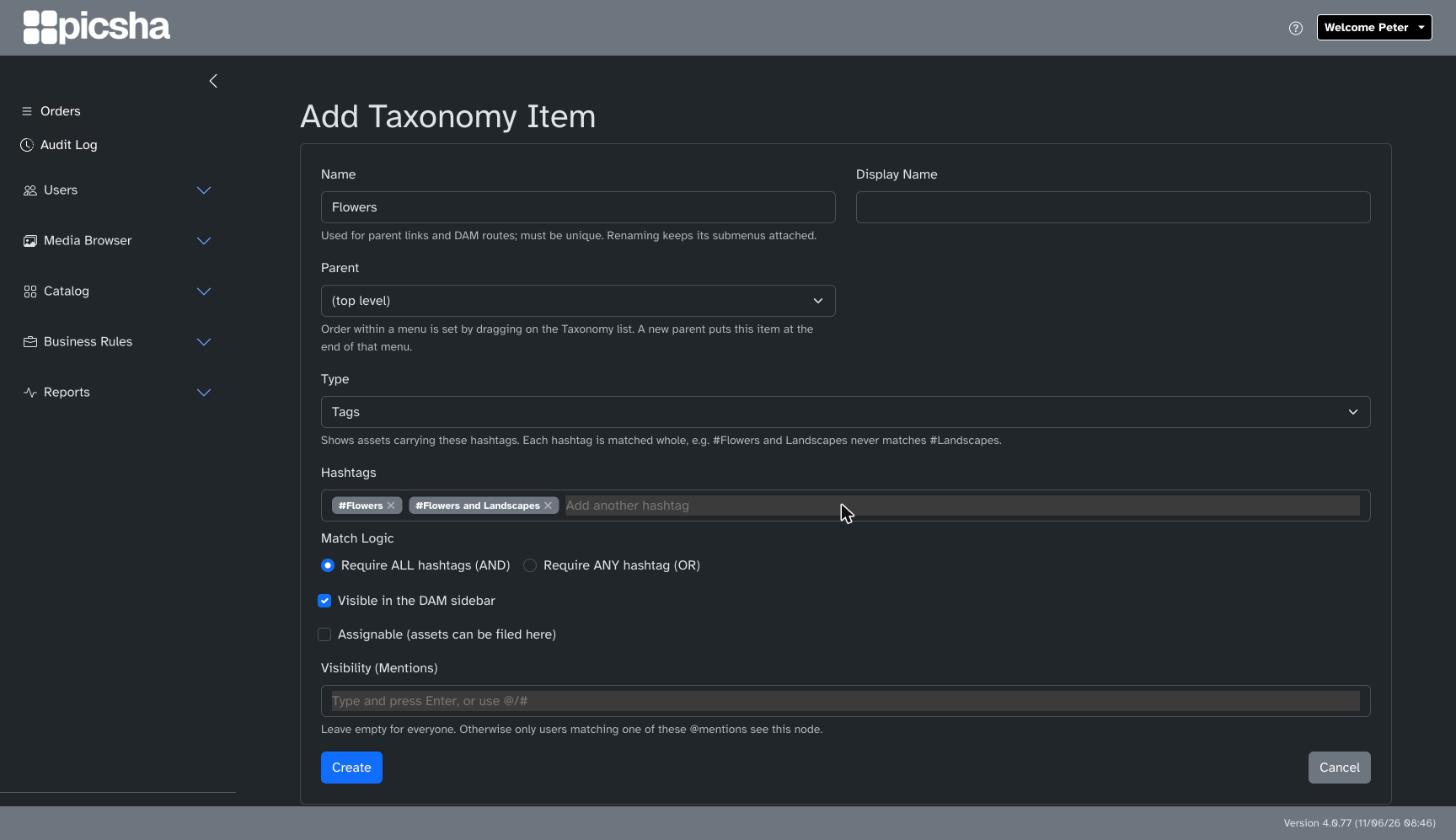
Click Add New, enter a Name and an optional Display Name, pick the Parent from the list (or leave it at the top level), choose the type, and click Create. Names are unique within your organization. Renaming an item keeps its submenus attached, and an item's place in the tree is set by dragging, as above.
Name a child item [face], [place] or [session] to have Picsha DAM expand it into one item per person, location or recent upload session, each using its parent's query. Other options:
- Visible in the DAM sidebar (on by default).
- Assignable: lets people file assets under this item.
- Visibility (Mentions): leave empty for everyone, or enter @mentions so only matching users see the item.
Delete an item from its edit page.
Tags items
A Tags item lists whole hashtags. Pick each one from the suggestions or type it and press Enter; it is added as a chip, and Backspace or its × removes the whole chip, so a hashtag with spaces in it, such as #Flowers and Landscapes, is never cut down to part of itself.
- Require ALL hashtags (AND): the item shows assets that carry every hashtag listed.
- Require ANY hashtag (OR): the item shows assets that carry at least one of them.
Each hashtag is matched whole, so an item listing #Flowers and Landscapes does not bring in assets tagged only #Landscapes.