Asset Visibility
Who sees an asset is set by the audience chosen when it is uploaded: @all, or one or more groups. What each person may do is set by their role. The Asset Visibility page holds the settings that apply to the whole organization. Make your changes and click Save Changes.
The Enforcement badge at the top shows whether these rules are being enforced for your organization; contact Picsha support to change it.
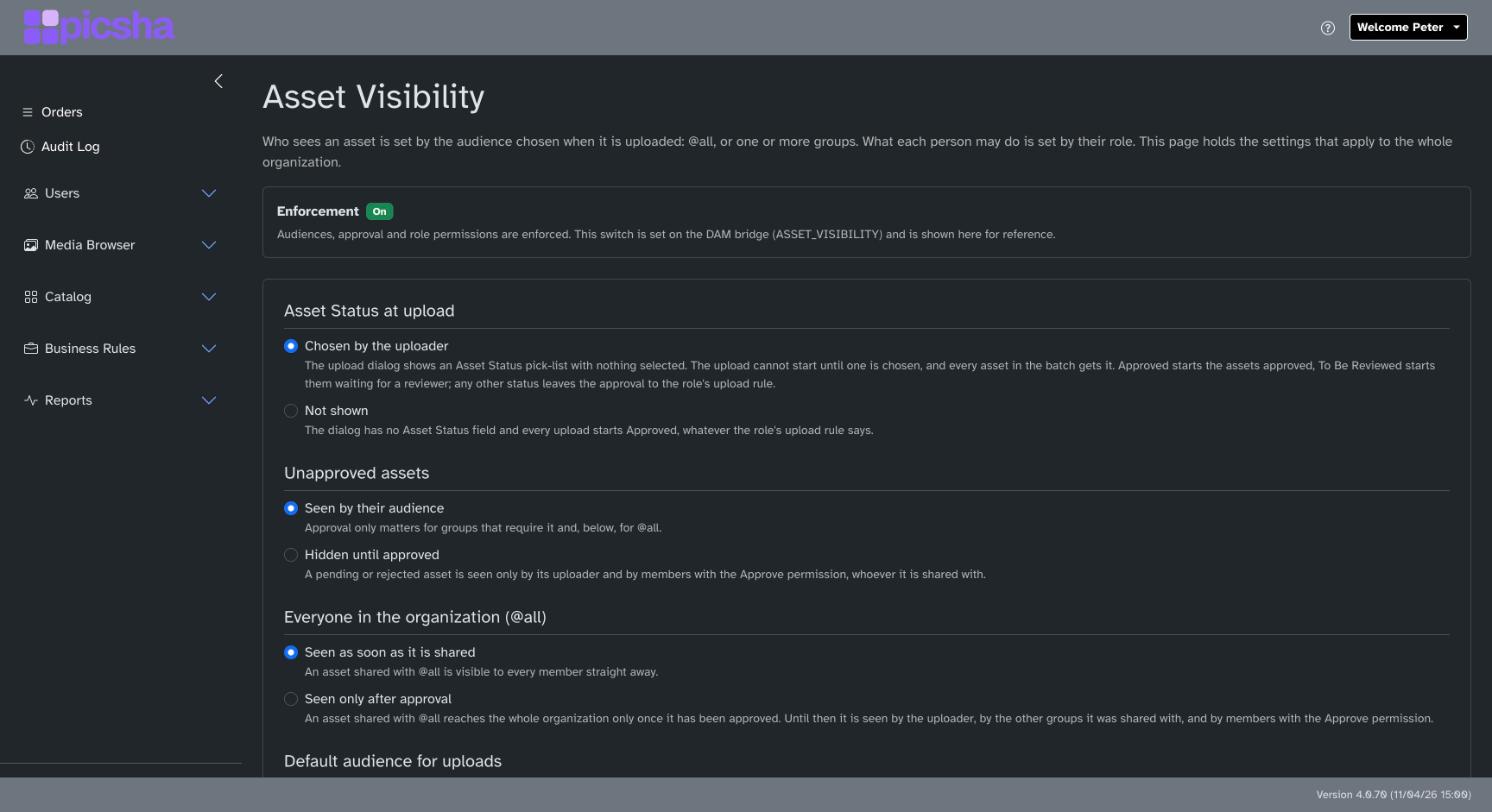
Asset Status at upload
- Chosen by the uploader (the default): the upload form has a required Asset Status pick-list. The upload can't start until a status is chosen, and every file in the upload gets it. Approved starts the assets approved, To Be Reviewed starts them pending, and any other status leaves the approval to the uploader's role.
- Not shown: the form has no such field and every upload starts Approved, whatever the role says.
Unapproved assets
- Seen by their audience (the default): pending and rejected assets are shown to their audience with a badge.
- Hidden until approved: a pending or rejected asset is seen only by its uploader and by members with the Approve permission.
Everyone in the organization (@all)
- Seen as soon as it is shared (the default).
- Seen only after approval: an asset shared with @all reaches the whole organization only once approved. Until then it is seen by the uploader, the other groups it was shared with, and approvers.
Default audience for uploads
Used when someone whose role may share with any audience leaves the audience blank:
- Only the uploader
- The uploader's groups
- Everyone (@all)
- Keyword match, otherwise the uploader: the groups named by the file's keywords (see below), or nobody but the uploader when none match.
- Keyword match, otherwise @all
Administrators always see everything.
Keywords that name a group
Photographers often put the names of the people or offices in a picture into the file's keywords. These settings turn such keywords into audiences and @mentions, for every organization that wants it; they are off by default.
A keyword names a group when, ignoring case and extra spaces, it equals the group's name or one of the spellings listed under Also matched by on the group's page. Choose Also match the text before the first comma of the name so a keyword "Johnson Mike" names the group "Johnson Mike, LA-04" without any extra data entry. A keyword that names two groups names none; the panel at the bottom of the page lists such spellings so you can fix them.
- Rewrite a keyword that names a group as the group's @mention: the matching keyword on the asset becomes the tag @<group name>, so the group's assets can be found with @.
- File keyword tags: which embedded keyword lists are read (normally Keywords and Subject).
The keyword audience applies only to uploads whose uploader chose no audience; an audience picked by hand is never changed. It is applied a minute or so after the upload finishes processing; until then only the uploader and administrators see the asset.
Apply to library in the panel at the bottom runs the rules over the whole library: the rewrite on every asset, and the keyword audience on assets that nobody but their uploader can see or whose audience the rules set before. The panel shows the job's progress. A change to these settings takes about a minute to take effect, so queue the job a minute after saving.
Public share links
- Allowed (the default): anyone holding a link can view the shared assets until it is revoked or expires.
- Not allowed: new public links can't be created; existing links keep working until revoked or expired.
Serve public image links as AVIF delivers the permanent image links from public shares in the AVIF format to browsers that accept it, which makes them smaller. Leave it off unless your web team asks for it.
Sharing also requires the Share permission on the person's role. The page lists the groups that require approval, with a link to each.