Printing
Picsha Lab prints through a print server: a small program installed on a Windows PC in your lab that can reach your printers and minilabs. The Lab decides what prints where, and the print server does the printing. All printing from the Lab goes through it; nobody needs to be at the PC for an order to print.
How it fits together
| Term | Meaning |
|---|---|
| Print server | The program on the lab PC. One per organization is usual; a second is needed when printers are at another site or attached to another PC. See Picsha Print Server. |
| Destination | Somewhere a print server can send a job: a Windows print queue it reports, or a hot folder watched by a Noritsu or Fuji minilab. |
| Preset | For a Windows print queue, one printer-and-media combination with its own saved driver settings, such as "4x6 Luster". A product is routed to a preset, so one queue can serve several papers. |
| Loaded now | What an operator says is in the printer. Jobs for another preset wait until that preset is loaded. |
| Route | Which destination, and which preset, channel or print code, each product prints on. Set in Settings → Printers → Product routing. |
A product with no route prints nothing, and the order says so.
Sending an order to print
By hand: select items in the Order Preview panel and click Print. See Order items.
Automatically: when Automatic printing is on (Settings → Printers), every order that reaches the trigger status (normally Submitted) is sent to the print server without anyone clicking. The order's status moves to Harvested when it is sent, then to Printed OK when every print job was accepted by the printer or minilab, or Error Printing when one failed. An order that automatic printing could not send shows a not printing badge in the queue, with the reason in its tooltip and in the Not printing automatically line of the Print jobs section. The usual reasons are a product with no route and a print server that is offline or paused.
The Print jobs section
Below the items in the Order Preview panel, Print jobs lists everything sent to a print server for this order, with a count badge.
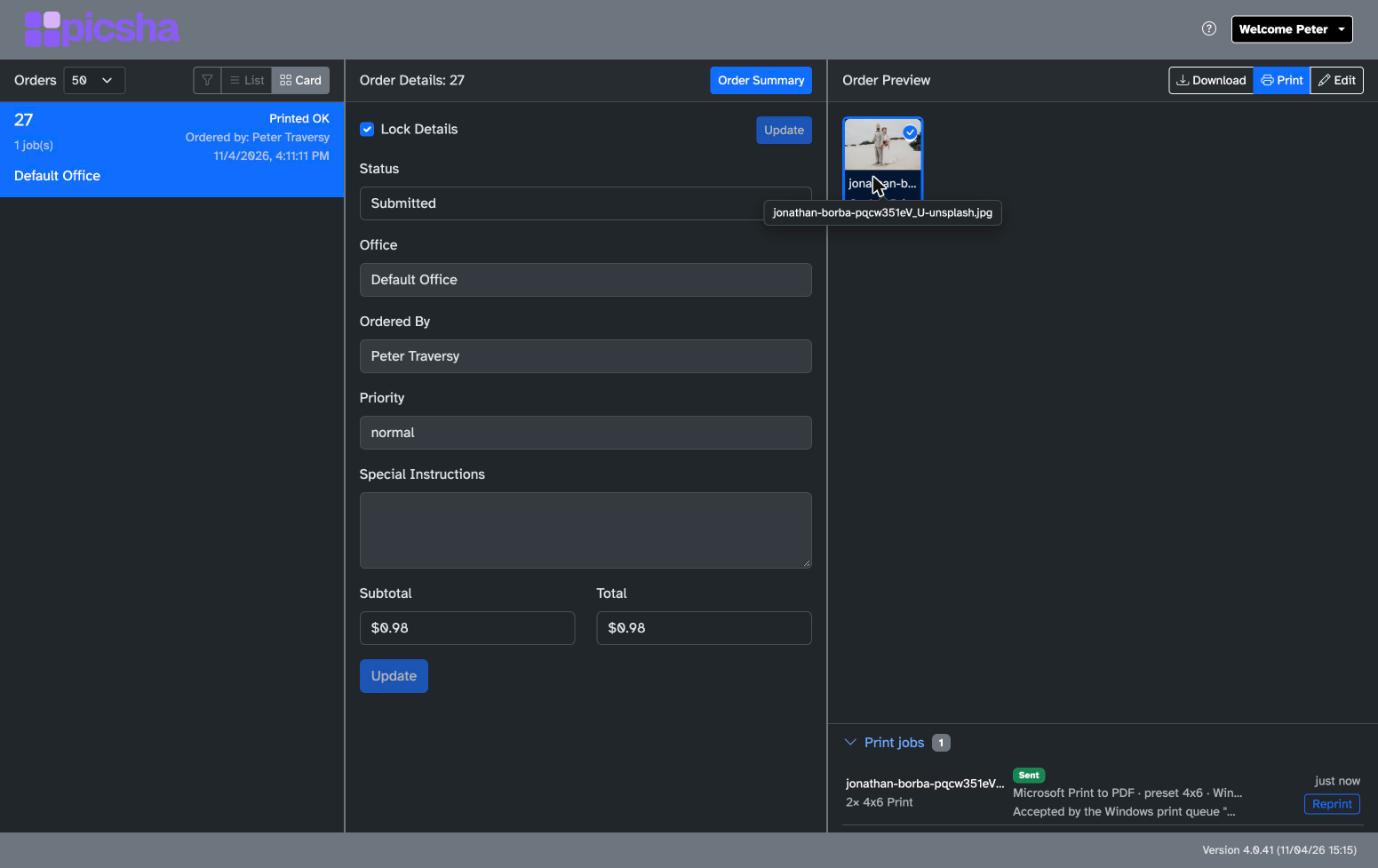 It refreshes every few seconds while a job is active. Each row shows the item, the copies and product, the state, the destination with its preset, channel or print code, the print server, the last message from the print server, and when it changed.
| State | Meaning |
|---|---|
| Waiting | Queued, not yet picked up. A badge may say why it is waiting: Waiting for 4x6 Luster to be loaded on Epson P800, or the printer is paused. |
| Picked up | The print server has taken the job and is downloading the file. |
| Sending | The job is being handed to the printer or written to the minilab's folder. |
| Sent | Accepted by the printer's spooler, or the minilab order folder was handed over. The print server cannot confirm that paper came out. For a Microsoft Print to PDF queue the message says where the file was saved (the Documents\Picsha Prints folder on the lab PC). |
| Failed | The print server could not send it. The message says why. Failed jobs are never retried on their own. |
| Check printer | The print server lost contact while sending. The job may or may not have printed. Look at the printer before deciding. |
| Held | An operator put it on hold. |
| Cancelled | An operator cancelled it. |
Jobs for a minilab hot folder are written as one order folder, so they show an order of N badge and are held, cancelled and reprinted together.
Actions
- Hold a waiting job, and Release it later.
- Cancel a waiting or held job. You are asked to confirm.
- Reprint a sent, failed, uncertain or cancelled job. It is queued again as a new job with the same settings. You are asked to confirm: check the printer first if it may already have printed.
- Mark printed a job in Check printer or Failed, once you have seen the print.
Nothing is ever printed twice without an operator choosing it: a job that fails or loses contact waits for you.
Printing documents
PDF and Word documents in an order print through the same routes as photos, provided the product is routed to a Windows print queue. Pages are fitted to the sheet. A Word document ordered from Picsha DAM comes with a PDF made at checkout; a document edited in the Lab is saved together with a fresh PDF. A document's product must be routed to a Windows print queue; a minilab takes photos only.
Loaded now and pausing
When you change the paper in a printer, tell the Lab: open Settings → Printers, find the printer's queue, and choose the preset under Loaded now. Jobs waiting for that paper start at once, and jobs for other papers wait. Choose Any preset for a printer that needs no operator step, such as a PDF printer or a printer with one paper. Pause a queue while you service the printer, or pause a whole print server from its card. Any member can do this; it needs no administrator.