Lab Connector
The Lab Connector lets an online store on the Picsha App suite, or another system, send print orders straight to your Picsha Lab. Each connected system holds a connector key issued here. Administrators manage keys under Welcome (your name), Settings, then Lab Connector.
Issuing a key
- Enter a New key label that says which retailer or system the key is for, for example "Fernwood Photo".
- Click Issue key. The key is shown once. Copy it now; it can't be shown again.
Give the retailer the key and your Lab's address, shown on the page, for example https://yourorg.dam.picsha.com. The retailer enters both once in their Picsha Hub under Admin, Lab, and every product they have sends its orders to your Lab. A single store can also be connected from that store's own admin, on its Lab card.
Managing keys
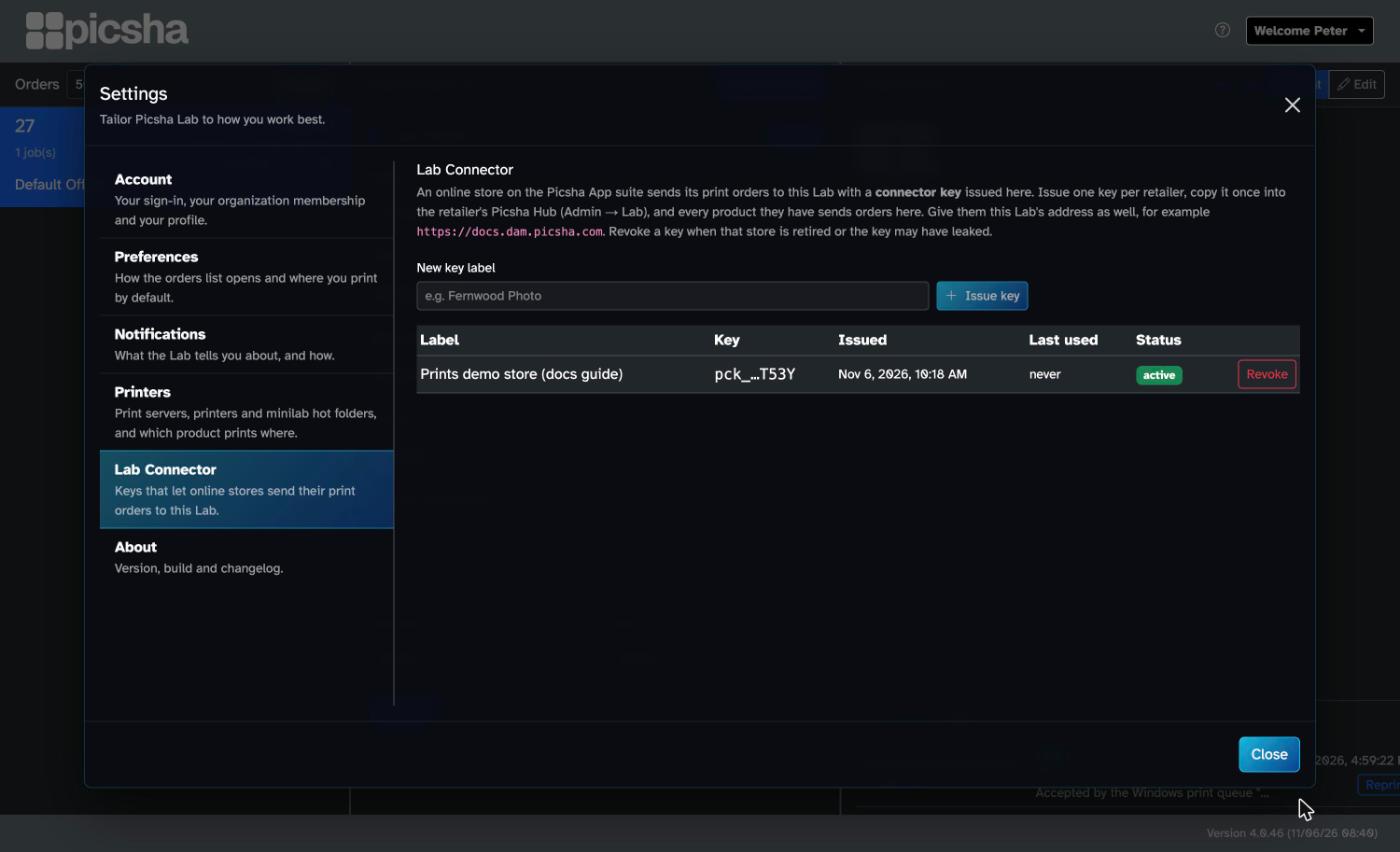
The list shows each key's label, a shortened form of the key, when it was issued and last used, and its status. Click Revoke to stop a key; the connected system can no longer send orders or read their status until it is given a new key. Orders already received are unaffected.
What a connected store sends
A connected store pushes its print sizes as products, which appear in product routing under the store's name, and sends each paid order with its print-ready files. The order arrives as an order of type app, first as Received while files are still arriving and then as Submitted. The Lab reports the order's status back to the store as it moves through production.